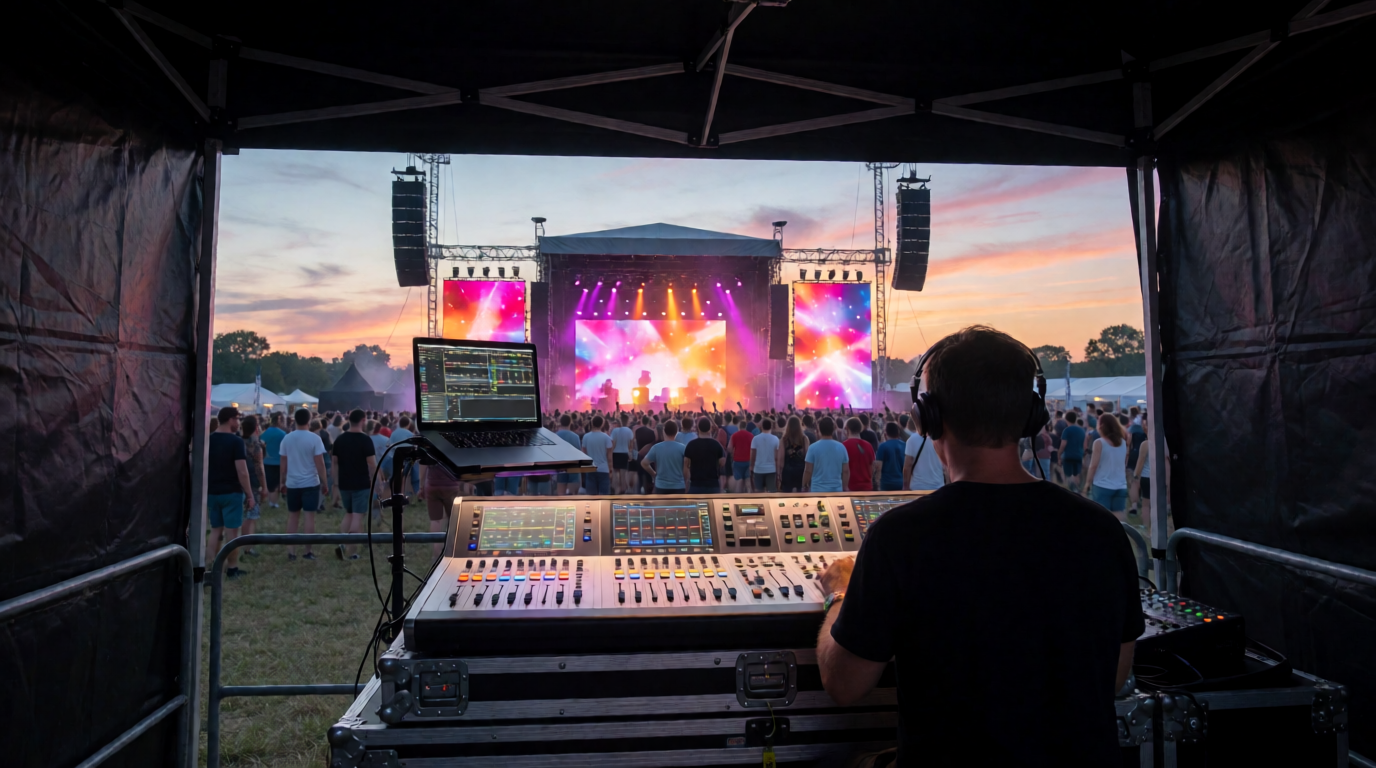
A modern general session is not one screen. It is a main wall, two side screens, a floor display, a ceiling ring, confidence monitors, a lobby feed, and a stream, each hungry for content at a different resolution and aspect ratio. The presenter changes slides, the director cuts to a camera, a video rolls, a logo bumper flashes, and every screen must respond in a way that feels deliberate. Managing LED content across multiple screens on show day is a playout problem, a routing problem, and a discipline of knowing which pixels go where.
From One Projector to a Screen Ecosystem
Early conferences used a single screen and a slide projector. As LED technology matured, designers began treating screens as architecture, with wide canvases, frames, and integrated shapes. Software like Resolume, disguise, Pixera, and Watchout lets one operator drive many surfaces, and screen management hardware from Barco, Analog Way, and Christie provides routing flexibility. The challenge has shifted from getting pixels on a screen to organizing a swarm of them.
Define the Screen Map
Start with a screen map, a diagram showing every display, its resolution, aspect ratio, position, source, and purpose. Include main LED walls, IMAG screens, confidence monitors, projection surfaces, lobby displays, and stream outputs. Label each with a unique name and ID, such as MAIN-L, MAIN-C, MAIN-R, SIDE-1, CONF-1.
Share the map with content creators, video operators, and directors. When everyone speaks the same names, instructions become precise: “Put the speaker on SIDE-1, slides on MAIN-C.” A screen map avoids the confusion that arises when people use informal terms such as “the big one.”
Separate Content Types
Not all content is equal. Divide material into categories: presentation slides, live camera, pre-produced video, graphics, lower thirds, sponsor loops, and ambient backgrounds. Each category may require different routing, layering, and timing.
Assign sources accordingly. Slides may come from PowerPoint or Keynote via laptop switchers, cameras from a video switcher, video from a media server, and graphics from ProPresenter or vMix. Plan how these combine on each screen, and who controls them.
Choose Playout Architecture
Several architectures work. A screen management system, such as Barco E2, Analog Way Aquilon, or Ross Carbonite, mixes sources and outputs to screens, with presets for each scene. A media server like disguise or Pixera can handle content playback and mapping while accepting live inputs.
Many shows combine both. The screen management system handles live sources, while the media server provides backgrounds and video clips. Decide who owns final output to avoid conflicts. A clear hierarchy of control prevents chaos.
Build Presets and Looks
Presets are the show’s memory. Create looks, such as Keynote, Panel, Video, Opening, Transition, and Closing, defining which sources appear on which screens. Name them clearly, and store them in the switcher, media server, or control software.
Test every preset with real content. Check layer order, scaling, transitions, and audio. Standardize transition types and durations, so the show feels cohesive. A library of tested looks lets the operator move quickly and confidently.
Manage Aspect Ratios and Safe Zones
Multiple screens mean multiple aspect ratios. A 16:9 slide may sit comfortably on a 16:9 side screen but look small on a 21:9 main wall. Decide how to fill space: with background graphics, stretched content, or cropped imagery.
Provide templates with safe zones and layout guides for each screen. Instruct presenters to design for the center canvas, and let background layers fill the remainder. For IMAG, ensure camera framing accommodates different aspect ratios.
Control Latency and Sync
Screens must feel synchronized. Differences in processing latency between LED processors, scalers, and media servers can cause visible offsets between screens. Measure latency for each path, and add delay to match.
Use genlock where possible, and frame-synchronized outputs. For IMAG, aim for minimum latency, since delays between performer and screen are noticeable. Document delay settings, and keep them consistent across events.
Plan Color and Brightness Consistency
Different screens may use different LED panels, pixel pitches, and processors, producing color and brightness variations. Calibrate each screen with a colorimeter and processor tools, such as Brompton Tessera calibration. Match gamma, white point, and brightness across screens.
Check content on each screen, and watch for banding, moiré, or color shifts. Consider HDR settings if supported. Consistency makes the whole system feel like one canvas.
Assign Roles and Responsibilities
Multi-screen content requires a team. Typical roles include video director, technical director, media server operator, graphics operator, slide operator, LED engineer, and content manager. Define who controls which screens and which sources.
Use intercom such as Clear-Com to coordinate, with phrases like “Preset 12 next” and “Taking side screens to logo.” Clear roles prevent two operators from changing the same output.
Provide Fail-Safe Content
Always have fallback content. Prepare safe loops for each screen, such as logo animations, title cards, or neutral backgrounds. If a source fails, the operator can switch to fallback content instantly.
Keep backup media on local drives, and backup devices ready. Test failover in rehearsal. A show that can recover gracefully appears professional, even when something goes wrong.
Version Control Content
Content changes constantly. Use a version control system, such as a shared drive with naming conventions, to manage files. Maintain a master content list with file names, durations, owners, and status.
Establish a content lock time, after which only emergency changes are allowed. Assign a content manager to receive and verify files. Chaos often comes from uncontrolled last-minute content.
Monitor and Verify
Use multiviewers to monitor sources and outputs, with screen names and tally. Verify that each screen shows the correct content. Walk the room, and check from audience positions.
Record the program feed and screen outputs for review. After the show, analyze errors and delays. Over time, you will refine presets, workflows, and team communication.
Practical Takeaways
Create a screen map, separate content types, and choose playout architecture. Build presets, manage aspect ratios, control latency, and calibrate color. Define roles, prepare fallbacks, control versions, and monitor.
The Bottom Line
Managing LED content across multiple screens is conducting a visual orchestra. When the map is clear, the presets are tested, and the team communicates, many screens speak in one voice. Audiences feel immersed in a coherent environment, not distracted by competing images.
